Table of Contents
1. Executive Summary and Strategic Overview
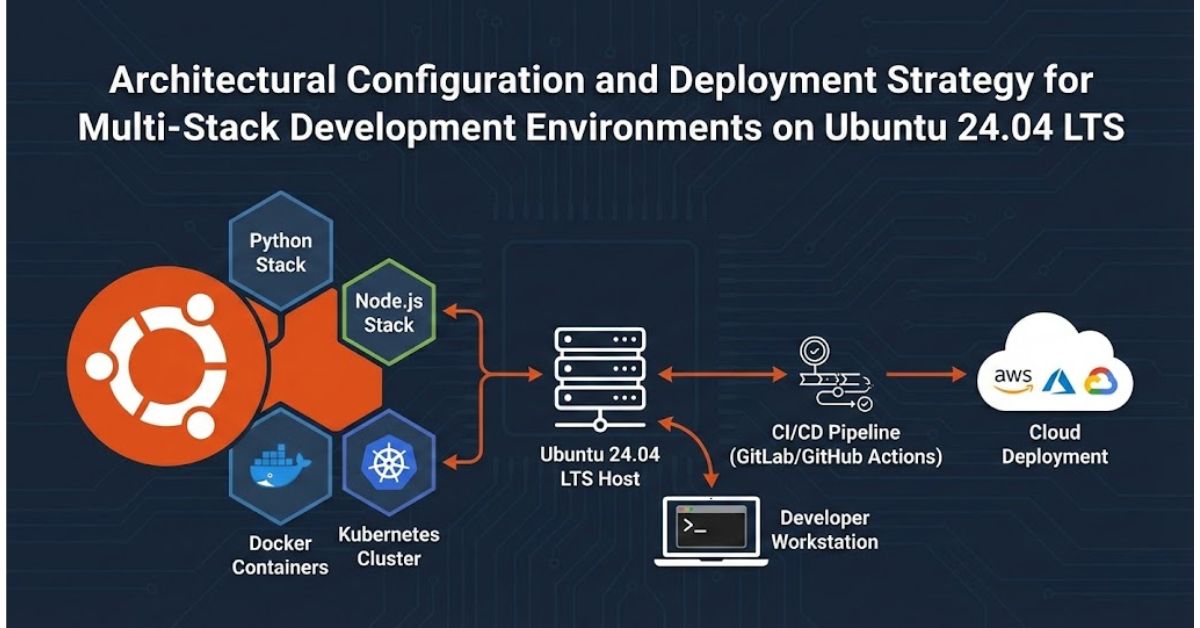
The provisioning of a Virtual Private Server (VPS) for modern software development and deployment strategy requires a paradigm shift from simple application installation to comprehensive infrastructure architecture. In the context of Ubuntu 24.04 LTS (Noble Numbat) hosted on Hostinger’s virtualization infrastructure, the convergence of heightened security standards, evolving language runtimes, and layered network access controls necessitates a highly nuanced, expert-level approach to configuration.
This research report serves as an exhaustive technical reference and strategic guide for deploying a high-availability, secure, and polyglot development environment. The target architecture is designed to support a concurrent stack comprising MySQL 8.0 (configured for secure remote access via MySQL Workbench), Node.js (leveraging dynamic version management), PHP 8.3 (the newly adopted standard for Noble Numbat), and Python 3.12 (operating within strict PEP 668 compliance protocols).
The objective extends beyond mere functionality; it aims to construct a cohesive ecosystem where these distinct technologies coexist without dependency conflicts, resource contention, or security vulnerabilities. The analysis draws upon the latest repository structures of Ubuntu 24.04, the specific network layer constraints of the Hostinger hPanel firewall, and the internal mechanics of language-specific package managers npm, Composer, and pip. By adhering to the protocols outlined in this document, administrators can ensure a development environment that is flexible enough for rapid iteration yet sufficiently hardened to withstand the hostile landscape of the public internet.
The transition to Ubuntu 24.04 LTS introduces significant changes in system administration workflows, particularly regarding Python environment management and default PHP versioning. Furthermore, the Hostinger VPS environment imposes a dual-layer firewall architecture comprising the external hPanel Edge Firewall and the internal OS-level UFW which requires synchronized configuration to enable services like remote database administration. This report dissects these layers, offering a granular, step-by-step methodology for constructing a professional-grade workbench.
2. Infrastructure Initialization and Hostinger VPS Hardening
Before the application layers MySQL, Node.js, PHP, and Python can be deployed, the foundational layer of the Operating System must be rigorously prepared. The reliability of any development stack is inextricably linked to the integrity of the underlying OS configuration. Ubuntu 24.04 LTS, while providing a robust base, requires specific initialization procedures to align with best practices for security and package management, particularly when deployed within a managed cloud environment like Hostinger.
2.1. Initial Access and the Principle of Least Privilege
Upon the initial provisioning of a VPS via the Hostinger platform, the default access state typically involves a root user account. While this provides immediate, unrestricted access to the server’s capabilities, reliance on the root account for daily operations and software installation constitutes a significant violation of the Principle of Least Privilege. In a professional deployment, the first operational mandate is the establishment of a secure user hierarchy.
2.1.1. Establishing Secure Connectivity
Access to the Hostinger VPS is primarily achieved via the Secure Shell (SSH) protocol. The initial connection is established using the IP address assigned in the hPanel dashboard.
ssh root@<hostinger_vps_ip>
Successful authentication validates the operational status of the SSH daemon (sshd). However, maintaining direct root access via SSH is considered a security risk. Automated botnets frequently scan public IP ranges for servers permitting root login, attempting brute-force attacks against this known username. Therefore, the architectural goal is to migrate administrative capability to a named user and disable root login.
2.1.2. The Sudo User Architecture
The creation of a dedicated administrative user, referred to in this architecture as the deployer or sysadmin, isolates the development environment from kernel-level privileges unless explicitly invoked. This separation ensures that commands capable of altering the system state are intentional and auditable.
The user creation process in Ubuntu 24.04 involves the adduser utility, which automates the creation of the home directory (/home/deployer) and the assignment of the default shell ().
adduser deployer
usermod -aG sudo deployer
The usermod command is critical; it appends the new user to the sudo group, granting the ability to execute administrative commands via the sudo prefix. This configuration aligns with the Ubuntu security model, which encourages the use of sudo for administrative tasks rather than a persistent root shell session.1
Once this user is established, it is imperative to verify access by initiating a new SSH session with the deployer credentials. Only after successful verification should the administrator proceed to modify the SSH daemon configuration (/etc/ssh/sshd_config) to disable root login (PermitRootLogin no) and potentially restrict password authentication in favor of SSH keys.
2.2. Package Repository Synchronization and System Update
Ubuntu 24.04 LTS relies on the Advanced Package Tool (APT) for software management. The OS image provided by Hostinger, while stable, is a snapshot in time. Between the creation of the image and the provisioning of the VPS, numerous updates to the kernel and software packages may have been released upstream.
Before installing any runtimes, the local package index must be synchronized with the Canonical repositories. This ensures the retrieval of the latest security patches and dependency definitions.
sudo apt update && sudo apt upgrade -y
This process serves two critical functions in the initialization phase:
- Security Baseline Establishment: It applies patches for any Common Vulnerabilities and Exposures (CVEs) discovered in the base packages (such as openssl, glibc, or systemd) since the release of the image.
- Dependency Resolution: It ensures that shared libraries are at their latest compatible versions. Runtimes like PHP 8.3 and Python 3.12 rely heavily on these shared libraries; attempting to install them on a stale system can lead to dependency hell or installation failures.1
2.3. The Dual-Layer Firewall Architecture
A distinctive feature of the Hostinger VPS environment is the existence of two distinct firewall layers that operate independently but must be configured in unison. Understanding the interaction between the Network Edge Firewall (managed via Hostinger’s hPanel) and the OS-Level Firewall (UFW – Uncomplicated Firewall) is essential for enabling remote services such as MySQL Workbench.
2.3.1. The Network Edge (hPanel)
The hPanel firewall operates at the network infrastructure level, filtering traffic before it even reaches the VPS network interface. This acts as the first line of defense, mitigating volumetric attacks and scanning noise. By default, Hostinger’s firewall policy may be set to “Drop,” meaning all incoming traffic is blocked unless explicitly allowed.
For a multi-stack development environment, specific “pinholes” must be engineered in this firewall.3 The requisite rules are:
- Port 22 (SSH): Absolutely critical for administration. Without this, the server becomes inaccessible.
- Port 80 (HTTP) & Port 443 (HTTPS): Required for the web server components of the Node.js and PHP stacks to serve content to browsers.
- Port 3306 (MySQL): The default listening port for the MySQL protocol. Opening this port is a prerequisite for direct TCP/IP connections from MySQL Workbench.4
Configuring these rules involves navigating the “Security” -> “Firewall” section of the hPanel, creating a new firewall profile, and adding “Accept” rules for these specific ports.
2.3.2. The Internal Firewall (UFW)
Even if the hPanel firewall permits traffic, the request is passed to the Ubuntu kernel. Ubuntu 24.04 utilizes UFW as a frontend to nftables (the successor to iptables). UFW allows administrators to define host-based security policies.
The activation of UFW secures the internal kernel handling of packets. A synchronization strategy is required where the rules in UFW mirror or restrict the rules in hPanel.
sudo apt install ufw
sudo ufw allow OpenSSH
sudo ufw enable
The command sudo ufw allow OpenSSH is a failsafe that ensures port 22 is open before the firewall is enabled. Once sudo ufw enable is executed, the kernel drops all other incoming connections. Subsequent sections of this report will detail the specific opening of port 3306 for MySQL, but fundamentally, the security posture relies on a “Default Deny” policy for incoming traffic and “Default Allow” for outgoing traffic.5
3. The Database Layer: MySQL 8.0 and Remote Workbench Integration
The requirement to support MySQL Workbench implies a need for remote database administration. This requirement introduces a classic architectural tension between accessibility and security. By default, MySQL is configured to be accessible only from the server itself (localhost). Transforming it into a remotely accessible service on Ubuntu 24.04 requires a multi-step configuration involving the binding address, user authentication plugins, and network access controls.
3.1. Installation and Service Verification
The installation of the MySQL server on Ubuntu 24.04 is best executed via the standard OS repositories. While Oracle provides external repositories, the version packaged by the Ubuntu team (typically MySQL 8.0 or 8.4) acts as the standard for LTS releases, receiving security backports and integration testing.
sudo apt install mysql-server
Upon installation, the systemd init system automatically registers the MySQL service. Verification of the process status is essential to confirm that the daemon (mysqld) has initialized the data directory correctly and is ready to accept connections.1
sudo systemctl status mysql
An output indicating active (running) confirms that the database engine is operational. However, at this stage, it is completely insecure and inaccessible from the outside world.
3.2. Security Initialization (mysql_secure_installation)
MySQL includes a security script that is mandatory for any server connected to the public internet. The mysql_secure_installation script interactively addresses several insecure default configurations that are remnants of a more permissive era of database administration.1
Executing sudo mysql_secure_installation initiates a dialogue with the following critical decision points:
- Validate Password Component: The system asks to install a password validation plugin. For a production-grade VPS, this should be enabled and set to STRONG, forcing passwords to contain mixed case, numbers, and special characters.
- Remove Anonymous Users: The default installation includes an anonymous user account intended for testing. Removing this account is critical to prevent unauthenticated entry into the database system.
- Disallow Root Login Remotely: This is a key defense-in-depth measure. The root database account should only be accessible via the local socket (i.e., after SSHing into the server). Disabling remote root login prevents attackers from guessing the administrative password over the network.
- Remove Test Database: The system ships with a database named test that is accessible by anyone. Deleting this removes a common sandbox often targeted by automated exploits.
- Reload Privilege Tables: This ensures that all changes take effect immediately.
3.3. Remote Access Architecture
By default, the MySQL configuration file in Ubuntu (/etc/mysql/mysql.conf.d/mysqld.cnf) contains a directive that binds the server strictly to the loopback interface (127.0.0.1). This “air-gaps” the database from the network interface card, rendering it invisible to external connection attempts, including those from MySQL Workbench.
3.3.1. Modifying the Bind-Address
To allow remote connections, the bind-address directive must be altered to instruct the daemon to listen on the external network interface.
sudo nano /etc/mysql/mysql.conf.d/mysqld.cnf
The line bind-address = 127.0.0.1 should be changed to:
bind-address = 0.0.0.0
The address 0.0.0.0 is a wildcard that instructs MySQL to accept TCP/IP connections on all available network interfaces. While effective, this significantly increases the attack surface of the server. In highly sensitive environments, one might bind explicitly to the VPS’s public IP address, but 0.0.0.0 is the standard configuration for enabling remote access.5
Following this change, the service must be restarted to re-bind the sockets:
sudo systemctl restart mysql
3.3.2. Creating a Dedicated Remote User
Since the root account has been restricted to local access (Step 3.2), a specific user for Workbench access must be provisioned. This separation of duties allows for granular permission control; the remote user can be restricted to specific databases rather than having global superuser privileges.
To create this user, one must access the MySQL shell:
sudo mysql
CREATE USER ‘workbench_user’@’%’ IDENTIFIED BY ‘StrongComplexPassword123!’;
GRANT ALL PRIVILEGES ON *.* TO ‘workbench_user’@’%’ WITH GRANT OPTION;
FLUSH PRIVILEGES;
The host specification ‘%’ is a wildcard that explicitly allows this user to connect from any IP address. In a stricter security context, this should be replaced with the specific static IP address of the developer’s workstation (e.g., ‘workbench_user’@’203.0.113.50’). This IP-based restriction creates a robust second layer of authentication.7
3.4. Authentication Plugin Compatibility
A common hurdle in connecting MySQL Workbench to Ubuntu-hosted MySQL 8.0 is the authentication plugin. MySQL 8.0 defaults to caching_sha2_password, a highly secure mechanism. However, older versions of MySQL Workbench or certain client libraries in the PHP ecosystem may fail to complete the handshake with this plugin, often throwing “Authentication plugin cannot be loaded” errors.
If such compatibility issues arise, the user configuration can be altered to use the legacy mysql_native_password plugin. This ensures maximum compatibility with a wide range of client tools.
ALTER USER ‘workbench_user’@’%’ IDENTIFIED WITH mysql_native_password BY ‘StrongComplexPassword123!’;
This command effectively downgrades the hashing mechanism for that specific user, trading a marginal amount of theoretical security for broad compatibility.1
3.5. Firewall Configuration for Port 3306
With the MySQL daemon configured to listen and a user authorized to connect, the final barrier is the network firewall. Traffic targeting port 3306 (MySQL) must be permitted through both the Hostinger Edge and the Ubuntu Kernel.
Step 1: Hostinger hPanel Configuration
The administrator must navigate to the VPS management console’s Firewall section. A new rule must be created:
- Protocol: TCP
- Port: 3306
- Source: Anywhere (0.0.0.0/0) or, preferably, the developer’s specific IP address.
Step 2: UFW Configuration
Simultaneously, the internal firewall must be instructed to pass this traffic to the MySQL daemon.
sudo ufw allow 3306/tcp
sudo ufw reload
3.6. Connection Methodologies: Direct TCP/IP vs. SSH Tunneling
While the configuration above enables Standard TCP/IP connections, expert practitioners often prefer Standard TCP/IP over SSH for connecting MySQL Workbench.
3.6.1. The SSH Tunnel Advantage
SSH Tunneling allows the developer to connect to the database without exposing port 3306 to the public internet. In this architecture:
- The bind-address remains 127.0.0.1 (secure).
- Port 3306 remains blocked on the firewall (secure).
- MySQL Workbench establishes an SSH connection to the VPS (Port 22).
- Database traffic is encrypted and tunneled through this SSH connection, appearing to the MySQL server as if it originates locally.
This method is architecturally superior as it eliminates the database port as an attack vector. The setup in Workbench requires:
- SSH Host: VPS IP Address
- SSH Username: deployer
- SSH Key/Password: The system user credentials.
- MySQL Host: 127.0.0.1
- MySQL Username: workbench_user (which can now be restricted to ‘localhost’ instead of ‘%’).
The report recommends this approach for production environments, while the direct TCP/IP method detailed previously is suitable for rapid development setups where connection convenience is prioritized.5
4. The JavaScript Runtime: Node.js Environment
Ubuntu 24.04 LTS includes a version of Node.js in its default repositories. However, in the fast-paced JavaScript ecosystem, the “default” version provided by the OS package manager (apt) is often an older LTS release (e.g., v18 or v20) that prioritizes long-term stability over feature parity with the latest development trends. For a robust development environment, dynamic version management is often preferred to allow for testing across different Node.js versions.
4.1. Comparative Analysis of Installation Methodologies
There are three primary pathways to installing Node.js on this architecture, each with distinct advantages and trade-offs.
| Method | Description | Pros | Cons |
| Ubuntu Default (apt) | Installs from Canonical repos. | Extremely stable; integrated with system updates; easy security patching. | Often outdated versions; requires sudo for global packages; inflexible. |
| NodeSource Binary | Installs from NodeSource repos. | Provides latest versions (v23.x) as system packages; widely supported. | Fixed version (hard to switch); requires sudo for global packages. |
| NVM (Version Manager) | Installs in user home directory. | Switch versions instantly; no sudo required for global packages; isolates projects. | Not available to all users system-wide; requires shell configuration. |
For a workbench environment intended for development, NVM is the industry standard recommendation.2
4.2. Strategy A: The NVM Approach (Recommended for Development)
NVM isolates the Node.js runtime from the system directories (/usr/bin). This architectural decision prevents the common permission errors (EACCES) that plague developers when attempting to install global tools like typescript or nodemon. By keeping the runtime in the user’s home directory, the developer retains full control without risking system stability.
4.2.1. Installing NVM
The installation involves fetching and executing the official install script, which clones the NVM repository to ~/.nvm.
curl -o- https://raw.githubusercontent.com/nvm-sh/nvm/v0.39.7/install.sh |
(Note: The version number in the URL should be checked against the latest release, but the install script generally handles the update logic.)
To activate NVM without restarting the shell session, the profile source command is required:
source ~/.rc
4.2.2. Installing Node.js LTS
With NVM active, installing the latest Long Term Support (LTS) version currently v20 (Iron) or v22 becomes a trivial command.
nvm install –lts
nvm use –lts
This installs Node.js and NPM (Node Package Manager) within ~/.nvm/versions/node/…. This encapsulation allows the developer to install global tools without sudo, avoiding permission drift in the file system.2
4.3. Strategy B: The NodeSource Repository (System-Wide Service)
If the VPS is intended to run a specific Node service via systemd where a static binary path is preferred, or if multiple users need access to the same binary, NodeSource is the superior choice.
4.3.1. Repository Setup
To install Node.js v22 (LTS) system-wide, the NodeSource setup script is used to modify the apt sources list.
curl -fsSL https://deb.nodesource.com/setup_22.x | sudo -E –
This script automatically adds the NodeSource signing key to the apt keyring and creates a sources list file (/etc/apt/sources.list.d/nodesource.list).
4.3.2. Installation
Once the repository is configured, the standard apt command is used:
sudo apt install -y nodejs
This installs both the node binary and npm. Verification is done via node -v.12
4.4. Essential Node Tooling and Process Management
For a complete environment, a process manager is required to keep Node applications alive after the SSH session ends. PM2 is the standard tool for this task.
npm install -g pm2
PM2 offers robust features including automatic restart on crash, log management, and cluster mode to utilize all CPU cores. Crucially, PM2 can be integrated with Ubuntu’s systemd to ensure applications restart automatically on server reboot.
pm2 startup systemd
This command generates and executes a script specific to the user environment, ensuring persistence of the application state.2
5. The PHP Ecosystem: PHP 8.3 and Extensions
Ubuntu 24.04 LTS (Noble Numbat) marks a significant shift in the PHP landscape by adopting PHP 8.3 as the default version in its main repositories. This provides developers with immediate access to the latest stable features, such as typed class constants, the json_validate function, and deep-cloning of readonly properties, without the historical need for external Personal Package Archives (PPAs).14
5.1. Core PHP Installation and Architecture
Unlike the monolithic “LAMP” stack installations of the past, a modern PHP environment often requires specific decoupled components. The architecture typically separates the Command Line Interface (CLI) used for scripting and dependency management from the process manager used for handling web requests.
To install the core PHP engine and the CLI:
sudo apt install php8.3 php8.3-cli php8.3-common
The php8.3-common package is a meta-package that includes a suite of essential, compiled-in extensions such as ctype, iconv, ffi, pdo, and tokenizer. These are non-negotiable for the operation of the PHP runtime and are installed automatically.16
5.2. The Extension Ecosystem
A raw PHP installation is rarely sufficient for modern development. Frameworks like Laravel, Symfony, and WordPress rely on a rich ecosystem of extensions to handle database connectivity, image processing, and complex string manipulation.
Based on the research analysis, the following extensions are identified as essential for a versatile workbench 17:
- Database Drivers: php8.3-mysql. This provides the pdo_mysql driver required to communicate with the MySQL server configured in Chapter 3.
- String Handling: php8.3-mbstring. Multibyte string support is critical for handling UTF-8 characters and non-English languages.
- XML Processing: php8.3-xml. Required for DOM manipulation, XML parsing, and many SOAP/REST client libraries.
- Data Transmission: php8.3-curl. The standard library for making HTTP requests to external APIs.
- Image Processing: php8.3-gd. A library for dynamic image creation and manipulation (resizing, cropping).19
- Archives: php8.3-zip. Essential for Composer to unzip packages and for application-level archiving.
- Math: php8.3-bcmath. Arbitrary precision mathematics, a strict requirement for financial calculations and e-commerce packages.
- Internationalization: php8.3-intl. Provides locale-aware formatting for dates, numbers, and currency.
Bulk Installation Command:
sudo apt install php8.3-mysql php8.3-mbstring php8.3-xml php8.3-curl php8.3-gd php8.3-zip php8.3-bcmath php8.3-intl
5.3. Dependency Management: Composer
No modern PHP environment is complete without Composer, the dependency manager. While Ubuntu 24.04 repositories contain a composer package, the upstream version is often preferred for its self-update capabilities and faster release cycle.
Installation via APT (Simplest/Stable):
sudo apt install composer
Verification:
composer –version
This tool allows the developer to manage project libraries (e.g., composer require monolog/monolog) and is the backbone of modern PHP workflows.
5.4. Execution Modes: FPM vs. Apache Module
The architecture of the web server integration is a critical decision point.
- Apache Module (libapache2-mod-php): Embeds the PHP interpreter inside the Apache process. It is simple to configure but can suffer from performance bottlenecks under high load due to memory overhead.
- PHP-FPM (php8.3-fpm): The FastCGI Process Manager runs as a separate service (daemon). The web server (Nginx or Apache) proxies requests to FPM. This is the industry standard for performance, allowing for worker pooling and better resource management.
For this general-purpose workbench, installing FPM is recommended to future-proof the environment, even if Apache is used.16
sudo apt install php8.3-fpm
6. The Python Environment: Version 3.12 and PEP 668 Compliance
Ubuntu 24.04 ships with Python 3.12 as the system default. While this brings significant performance improvements and syntax features, it also introduces a strict enforcement of PEP 668 (Externally Managed Environments). This policy change is the single most common stumbling block for developers migrating to Noble Numbat, necessitating a complete change in workflow regarding package installation.20
6.1. Understanding PEP 668 and “Externally Managed Environments”
When a user attempts to run pip install requests globally on Ubuntu 24.04, the system will reject the command with a specific error message: error: externally-managed-environment.
This behavior is a deliberate safety feature, not a bug. In previous Ubuntu versions, global pip installations operated in the same namespace as the system’s apt managed Python packages. This created the potential for conflicts where a user updating a library via pip could inadvertently break system tools (like netplan, dnf, or cloud-init) that relied on specific versions of that library. PEP 668 establishes a firewall between the OS’s Python packages and the developer’s Python packages.21
6.2. The Solution Architecture: Virtual Environments (venv)
The mandated workflow for Python development on Ubuntu 24.04 is the exclusive use of Virtual Environments. A virtual environment creates an isolated directory containing its own Python binary and site-packages folder, completely decoupling the project from the system Python.
6.2.1. Installing the Venv Module
While the Python 3.12 interpreter is installed by default, the module required to create virtual environments is packaged separately to reduce the base image size.
sudo apt install python3-venv python3-pip
6.2.2. Workflow for Python Projects
For any new Python project (e.g., a Django application or a data processing script), the operational workflow is as follows:
- Create the Project Directory:
mkdir my_project && cd my_project - Initialize the Environment:
python3 -m venv venv
This creates a folder named venv in the local directory. - Activate the Environment:
source venv/bin/activate
The shell prompt will change (e.g., (venv) user@host), indicating that the environment is active. - Install Packages:
pip install requests numpy
This command now succeeds because it installs libraries into my_project/venv/lib/, leaving the global system pristine.22
6.3. Global Tools Architecture: Pipx
There are scenarios where a developer needs a Python-based command-line tool (such as black, httpie, or youtube-dl) available globally across the system, rather than tied to a specific project library. Installing these inside a project venv is cumbersome, yet global pip is forbidden.
The architectural solution is pipx. Pipx is designed specifically for this use case. It installs each application in its own isolated virtual environment but automatically links the executable binary to the user’s global PATH.
Installation:
sudo apt install pipx
pipx ensurepath
Usage:
pipx install httpie
This provides the user experience of a global installation (running httpie from anywhere) while strictly adhering to the isolation standards of PEP 668.21
6.4. The Risks of –break-system-packages
Users exploring forums may encounter the flag –break-system-packages as a workaround to force global pip installations.
Advisory: This flag should be strictly avoided in a stable VPS environment. As the name implies, it overrides the safety checks and reintroduces the risk of system instability. It is intended only for disposable container environments where the system state is ephemeral.25
7. Integrated Configuration and Testing
With all four components (MySQL, Node.js, PHP, Python) installed, the final phase ensures they operate harmoniously and persist across reboots.
7.1. Cross-Component Verification
- PHP Connectivity: Verify that PHP can load the MySQL driver:
php -m | grep pdo_mysql
Expected output: pdo_mysql. - Node.js Connectivity: In a Node project, installing the mysql2 driver and attempting a connection to 127.0.0.1 verifies the stack.
npm install mysql2 - Python Connectivity: Within a venv, installing mysql-connector-python verifies the path.
pip install mysql-connector-python
7.2. System Maintenance and Monitoring
To maintain the health of this multi-stack environment, a regular maintenance schedule is required:
- System Updates: sudo apt update && sudo apt upgrade handles updates for the Kernel, MySQL, PHP, and System Python.
- Node.js Updates: nvm install <new_version> allows for parallel installation of new Node versions.
- Log Monitoring:
- MySQL Logs: /var/log/mysql/error.log
- PHP-FPM Logs: /var/log/php8.3-fpm.log
- System Logs: journalctl -xe
8. Conclusion
Deploying a multi-stack development environment on Ubuntu 24.04 LTS requires navigating the intersection of strict security standards (PEP 668, MySQL secure installation) and modern development needs (Remote Workbench, latest Node.js). The transition to Noble Numbat brings performance and feature benefits but demands a higher level of discipline in package management.
The architecture defined in this report prioritizes:
- Security: By utilizing dedicated users for remote database access, strictly firewalling ports via the Hostinger/UFW dual-layer, and advocating for SSH tunneling.
- Stability: By adhering to the venv standard for Python and using apt for the core PHP and MySQL services to ensure security backports.
- Flexibility: By implementing NVM for Node.js, allowing the developer to adapt to rapid changes in the JavaScript ecosystem without disrupting the underlying system.
By adhering to this configuration path, the Hostinger VPS is transformed from a generic Linux instance into a sophisticated, professional-grade development workbench capable of hosting complex, polyglot applications with reliability and security.
9. Detailed Reference: Command Summary
| Component | Installation Method | Key Config Path | Verification Command |
| MySQL 8.0 | APT Repository | /etc/mysql/mysql.conf.d/mysqld.cnf | sudo systemctl status mysql |
| Node.js | NVM (User Level) | ~/.nvm/ | node -v |
| PHP 8.3 | APT (Default Repos) | /etc/php/8.3/cli/php.ini | php -v |
| Python 3.12 | APT + Venv | /usr/bin/python3 (Sys) / venv/ (Proj) | python3 –version |
Works cited
- Installing MySQL Server and Workbench on Ubuntu 24.04 – Mediumhttps://medium.com/@i211232/installing-mysql-server-and-workbench-on-ubuntu-24-04-0c00f4b4c537
- How to Install Node.js on Ubuntu 24.04: A Complete Guidehttps://www.enginyring.com/en/blog/how-to-install-node-js-on-ubuntu-24-04-a-complete-guide
- Your VPS is Exposed: Add Firewall Rules to Hostinger (Step-by-Step)https://www.youtube.com/watch?v=bjMGvwHKXyY
- How to Use a Managed VPS Firewall at Hostingerhttps://www.hostinger.com/support/8172641-how-to-use-a-managed-vps-firewall-at-hostinger/
- MySQL: How to allow remote access to your database – BitLaunchhttps://bitlaunch.io/blog/mysql-how-to-allow-remote-access-to-your-database/
- Securing Publicly Accessible Services on Your VPS – Hostingerhttps://www.hostinger.com/support/securing-publicly-accessible-services-on-your-vps/
- Step-by-Step MySQL Installation on Ubuntu | DigitalOceanhttps://www.digitalocean.com/community/tutorials/how-to-install-mysql-on-ubuntu-22-04
- How to install MySQL on Ubuntu 24.04 – Hostingerhttps://www.hostinger.com/in/tutorials/how-to-install-mysql-ubuntu
- How to Install NodeJS and NPM on Ubuntu 24.04 LTS – FOSS TechNixhttps://www.fosstechnix.com/install-nodejs-and-npm-on-ubuntu-24-04-lts/
- How to Install Node.js on Ubuntu (Step-by-Step Guide) | DigitalOceanhttps://www.digitalocean.com/community/tutorials/how-to-install-node-js-on-ubuntu-22-04
- How to Install Node.js on Ubuntu 24.04 – LinuxTutohttps://www.linuxtuto.com/how-to-install-node-js-on-ubuntu-24-04/
- NodeSource Node.js Binary Distributions – GitHubhttps://github.com/nodesource/distributions
- How to Install Node.js and NPM on Ubuntu 24.04 | LinuxHostSupporthttps://linuxhostsupport.com/blog/how-to-install-node-js-and-npm-on-ubuntu-24-04/
- What PHP version/s will be officially supported by Ubuntu 24.04https://askubuntu.com/questions/1500503/what-php-version-s-will-be-officially-supported-by-ubuntu-24-04
- php : Noble (24.04) : Ubuntu – Launchpad.nethttps://launchpad.net/ubuntu/noble/+package/php
- How to install or upgrade to PHP 8.3 on Ubuntu and Debianhttps://php.watch/articles/php-8.3-install-upgrade-on-debian-ubuntu
- How to Install PHP 8.3 on Ubuntu 24.04 | LinuxHostSupporthttps://linuxhostsupport.com/blog/how-to-install-php-8-3-on-ubuntu-24-04/
- How to install all required PHP extensions for Laravel?https://stackoverflow.com/questions/40815984/how-to-install-all-required-php-extensions-for-laravel
- How to Install PHP GD Extension on Ubuntu 24.04 LTS – InterServerhttps://www.interserver.net/tips/kb/how-to-install-php-gd-extension-on-ubuntu-24-04-lts/
- accessed on December 14, 2025, https://utcc.utoronto.ca/~cks/space/blog/python/Ubuntu2404PythonState
- How to Fix Error: Externally-Managed-Environment in Pip – Built Inhttps://builtin.com/articles/error-externally-managed-environment
- pip error on Ubuntu: externally-managed-environment × This …https://askubuntu.com/questions/1465218/pip-error-on-ubuntu-externally-managed-environment-%C3%97-this-environment-is-extern
- Correct way to install Python 3.12 on Ubuntu 24.04 (with pip & venv)?https://www.reddit.com/r/PythonLearning/comments/1kzj5sx/correct_way_to_install_python_312_on_ubuntu_2404/
- Handling Externally Managed Environment Packages that are …https://discuss.python.org/t/handling-externally-managed-environment-packages-that-are-outdated/75497
- How to Fix Python Pip Install Error in Ubuntu 24.04 – UbuntuHandbookhttps://ubuntuhandbook.org/index.php/2024/03/pip-install-error-ubuntu-2404/